
Before you start
Check that you have these four things set up.
A working, authenticated Claude Code
RequiredInstalled and signed in, version 2.0.76 or newer. Step 1 below shows how to check and how to install it.
A Mac on macOS 14 Sonoma or later
RequiredApple silicon or Intel.
Tailscale
OptionalOnly if you want to use Pedagogue from your phone. See On your phone.
Python 3 with a few science libraries
OptionalLets Pedagogue compute the numbers its figures plot instead of recalling them "from memory". Without Python, compute simply stays off.
Install
-
Make sure Claude Code is ready
In Terminal, check which version you have. You need 2.0.76 or newer.
claude --versionIf the command isn't found, install Claude Code by following Anthropic's installation instructions, then open a new Terminal window, run
claudeonce and follow the prompts to sign in. -
Download Pedagogue from your invite email
The link in the email downloads a disk image (
.dmg) and is valid for 7 days. -
Drag Pedagogue to Applications
Open the disk image and drag
Pedagogue.appinto your Applications folder. -
Open Pedagogue
Pedagogue lives in the menu bar, not the Dock. When it has started, it opens itself in your web browser. That browser tab is where all your learning happens.
-
Add the Python extras Optional
No Python 3 yet? The quickest way is Homebrew, or download it from python.org.
brew install pythonIf you have Python 3, install the four libraries the compute sandbox uses: numpy for array math, scipy for equations, transforms and optimization, sympy for symbolic algebra, and pandas for tables of data.
python3 -m pip install numpy scipy sympy pandasYou can turn compute on or off on a journey-by-journey basis later.
What to expect on first launch
Click the Pedagogue icon in the menu bar to start or stop its server, see whether it's running, and read the preflight check. The preflight check looks at everything Pedagogue depends on and tells you what's missing:
- Claude Code is installed and new enough
- You're signed in to Claude Code
- Python, and which libraries it has
- Your library folder opens and saves
- The port Pedagogue uses is free
- Who on your network can reach it
- Whether Tailscale is worth setting up
- What your library inherits from Claude Code
Pedagogue opens in your browser. You can access it by clicking Open in the menu bar. You'll be greeted by a tutorial your first time in the app. Step through to learn more about Pedagogue.
Everything you learn is saved in one folder on your Mac, your vault:
~/Library/Application Support/pedagogue/vaultA new vault comes with one journey already in it, Why Are There Seasons? It's an ordinary journey. Read it to get a feel for how Pedagogue teaches — and to get a guided tutorial of the journey interface — try the figures, then archive it whenever you like.
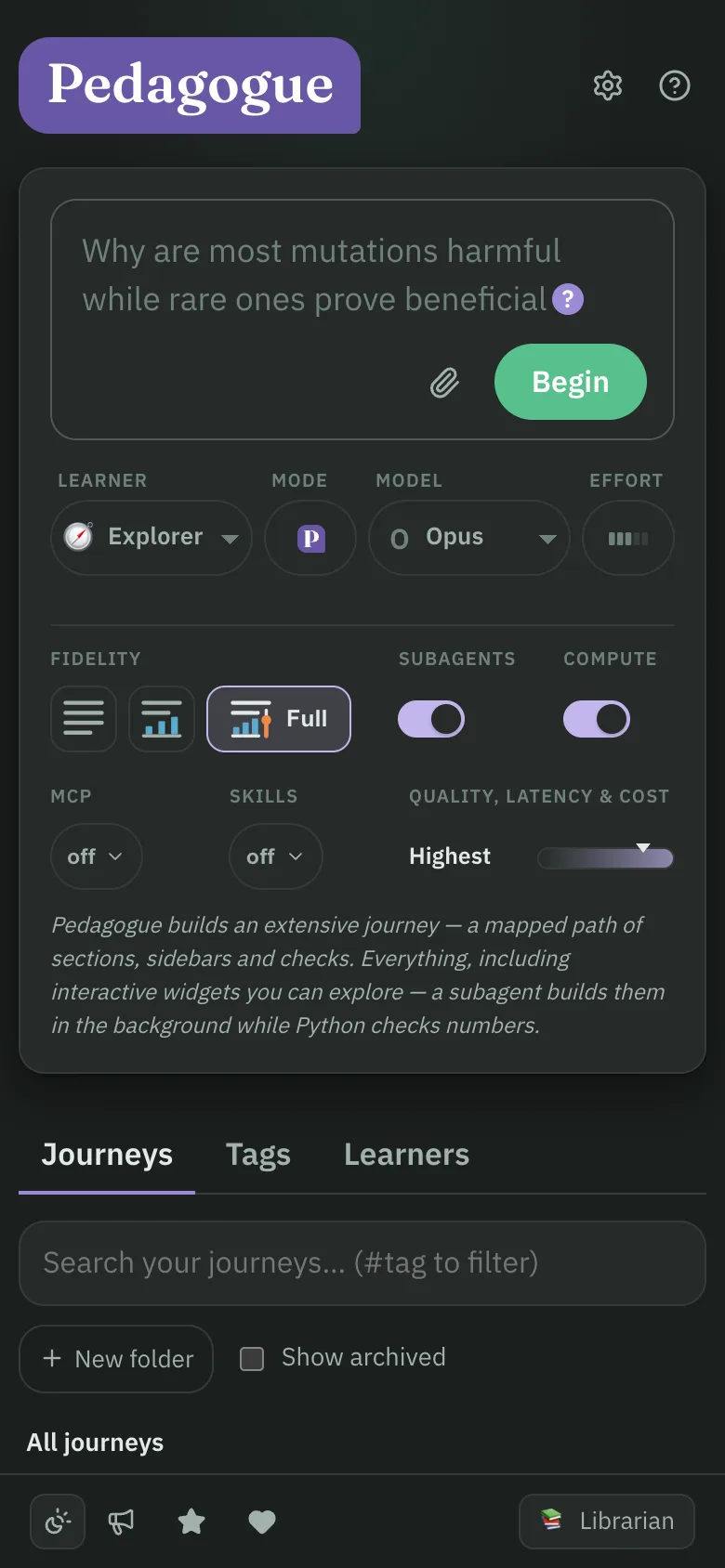
To start your own, type a question into the box on the home page and press Begin.
Using Pedagogue from your phone
There's no phone app to install. Pedagogue runs on your Mac and uses the Claude Code installation on your Mac. To reach it from your phone you'll need to be able to connect your phone to your Mac. The best (and free!) way to do this is to use Tailscale to set up a private network between your own devices.
Install Tailscale on both
Put Tailscale on your Mac and your phone, and sign both in to the same account.
Start Tailscale first
Pedagogue looks for Tailscale once, when it starts. If Pedagogue was already running, restart it from the menu bar.
Open the address on your phone
The menu bar panel can get you a QR code to connect your phone. You can bookmark the page to access it later. The address will look like one of these:
http://<your-mac's-name>:4317
http://100.x.x.x:4317
Trust and privacy
Pedagogue is a local app for one person. Here's exactly what that means.
It's yours alone
There are no accounts or passwords. Your macOS user account is the only boundary. The teacher acts with your authority through your own Claude Code sign-in, and Pedagogue never sees an API key. What you type and the lessons you're shown go to Anthropic through your own Claude Code, under your account and their terms. Your journeys stay on your Mac, and we don't receive a copy unless you send one with feedback.
It only listens to your devices
There's no login screen, on purpose. Pedagogue only answers on this Mac and on your Tailscale address, and it checks every request's origin to block other websites from reaching it.
Computed code runs inside a fence
When the teacher runs Python for you, macOS's sandbox guarantees:
- no network access, for the script or anything it starts;
- files can only be written inside that journey's scratch folder.
Note: The fence does not stop a script from reading files your account can read, from printing what it reads, or from looking up domain names. If you are concerned about this behavior turn Compute off.
Pedagogue does connect to the broader internet
It does this to collect primary sources, fetch data, and check its memory. Think of it as browsing the web on your behalf to get you the answers you need. Note that this is Claude Code's standard behavior, simply wrapped in a more pedagogical interface.
Telemetry: usage counts, never content
Pedagogue sends anonymous counts and timings, like "a journey was created" or "a figure rendered", tied to a random ID for your vault. It never sends a topic, title, question, lesson text, file name or folder path, and the server enforces that list. This is on by default. You can turn it off using the gear icon in the Pedagogue web app.
Feedback you send is private to us
When you send feedback from the app, you see exactly what will be sent before it goes. A report can include the journey you were on and a diagnostics log of what the agent did in it. It goes to the Pedagogue team only, is stored privately, and includes your email address so we can reply.
During the beta, we know who you are
Your invite and download link were made for your email address, so we keep it, along with what you do with your link: whether you downloaded the app and whether you answered the survey. That's separate from the anonymous usage counts above, which include no name or email.
Getting help
Start with the preflight check
Open the menu bar panel. If something is missing, the preflight check names it.
If you can't get the app started: reply to your invite email
Describe what happened. A screenshot of the preflight check helps a lot.
If you're having an app issue or have some feedback
Click the Feedback button and send us a report. It shows you exactly what will be sent before it goes, and you can optionally include your journey so we can debug things on our end.
If a figure on a journey is broken
Ask the agent to fix it! Just click the bug icon and report the issue, the agent can fix the figure in-place. In fact, you can use pretty much any input surface to ask the agent to amend the journey and it can make edits in-place.
FAQ
- Why is this a Mac app and not a web service? And why do I need my own Claude account?
- Frankly, too many AI startups are all about running models (or delegating to models) and then charging you a subscription fee. I'm so tired of subscription fees. Aren't you? Pedagogue uses your local Claude Code to generate journeys.
- Why just Mac?
- It's just Mac. For now. We can expand to Windows and Linux if we see demand.
- Why just Claude?
- Candidly, Claude Code is pretty powerful and gives us a lot for free. If there's demand for other frontier company subscriptions (OpenAI, Gemini, etc.) we'll evaluate how best to add support. Also if there's demand for on-device models we'll look into it. However Pedagogue is designed with Claude in mind, which means spacious context windows, deep reasoning, broad general knowledge, and snappy response times. The local-model experience will probably be suboptimal unless you have some serious hardware.
- How much of my Claude usage does a journey use?
- It depends on the model and how rich you ask it to be. A full-fidelity journey on Opus with interactive figures uses the most; Sonnet, or a text-only or diagrams-only journey, uses much less. You pick the model, effort and fidelity for each journey, so you can save the heavy settings for the topics that deserve them.
- Where do my journeys live, and do I own them?
- On your Mac, as plain files in your vault folder (
~/Library/Application Support/pedagogue/vault). Back them up, move them, or read them without the app. Pedagogue doesn't collect your journeys. The one exception is feedback: if you choose to include a journey in a report, it comes to us, privately. What Claude sees is covered by your own Claude account's terms. - Can I share a journey?
- Yes. Export any journey as a single, self-contained HTML file. Anyone can open it in a browser, figures and all, without Pedagogue or a Claude account.
- What if it gets something wrong?
- It can. Pedagogue uses AI, and AI makes mistakes, so double-check anything that matters. When something looks off, say so: ask it to fix a passage, redo a figure or add sources, and it edits the journey in place.
- Does it work offline?
- Your journeys are on your Mac, but writing new ones (or answering a Define or Discuss) needs Claude, so you need to be online.
- Does it work on iPad?
- Yes, the same way as on your phone: open your Mac's address in Safari over Tailscale.
- Can my family use it?
- Pedagogue is built for one person per Mac account. Learners let you keep different styles and settings side by side, but they share one library. If we see demand for multiple users we'll evaluate how to fold that in.
- What happens when the beta ends?
- We'll communicate our plans based on how the beta goes.
- How do I uninstall it?
- Quit Pedagogue from the menu bar and drag the app to the Trash. Your journeys stay in your vault folder; delete that too if you want them gone.